Backgammon match tracker, clock and scoreboard.
Record matches played across the board or online, and keep the results in one place.
Use the match clock, tap in the score, or add a result afterwards. Signed-in matches are saved to your history automatically. Guests can create an account at the end to keep theirs.
Add older matches, compare your record against opponents, and see how your clubs are doing on the leaderboard.
Record a match in Pipster
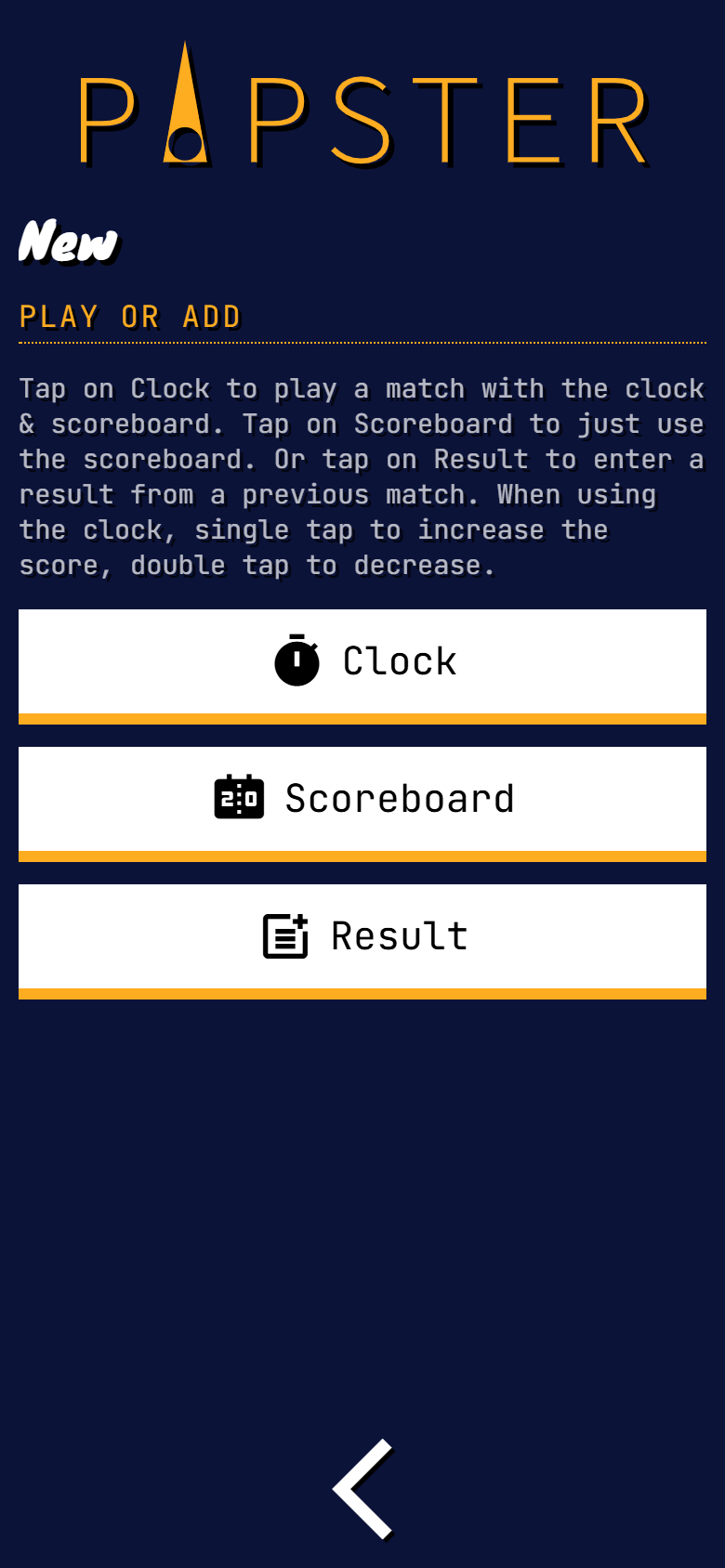
There are three straightforward ways to record a match.
The clock
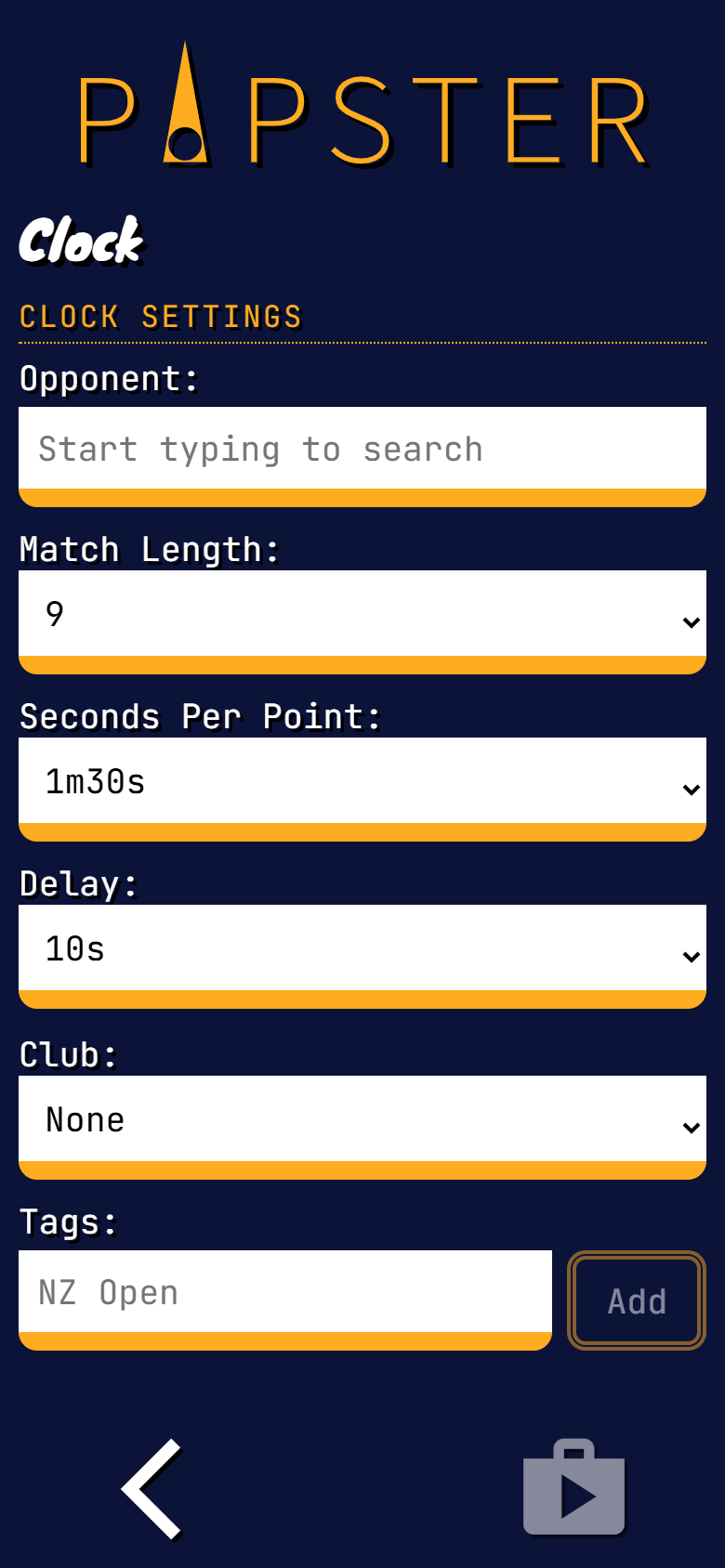
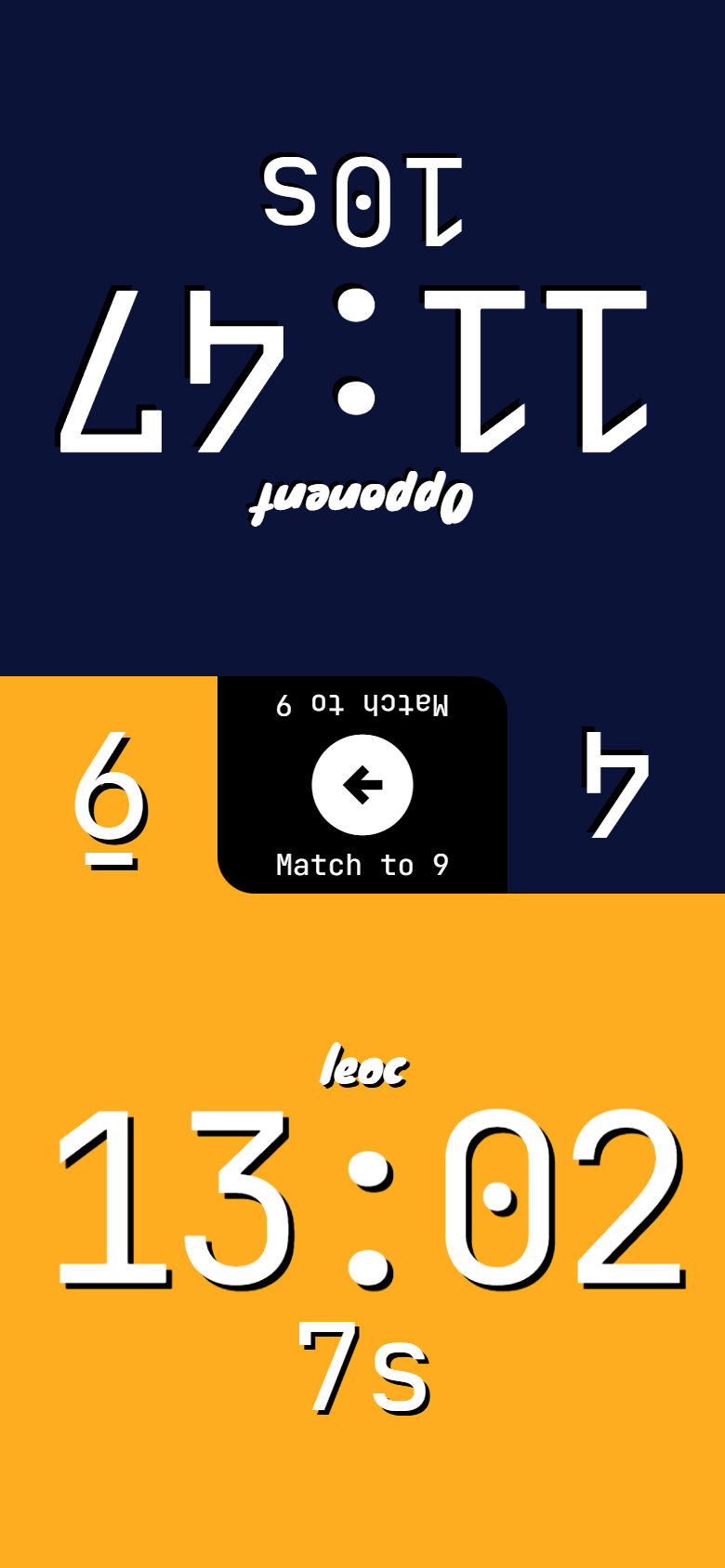
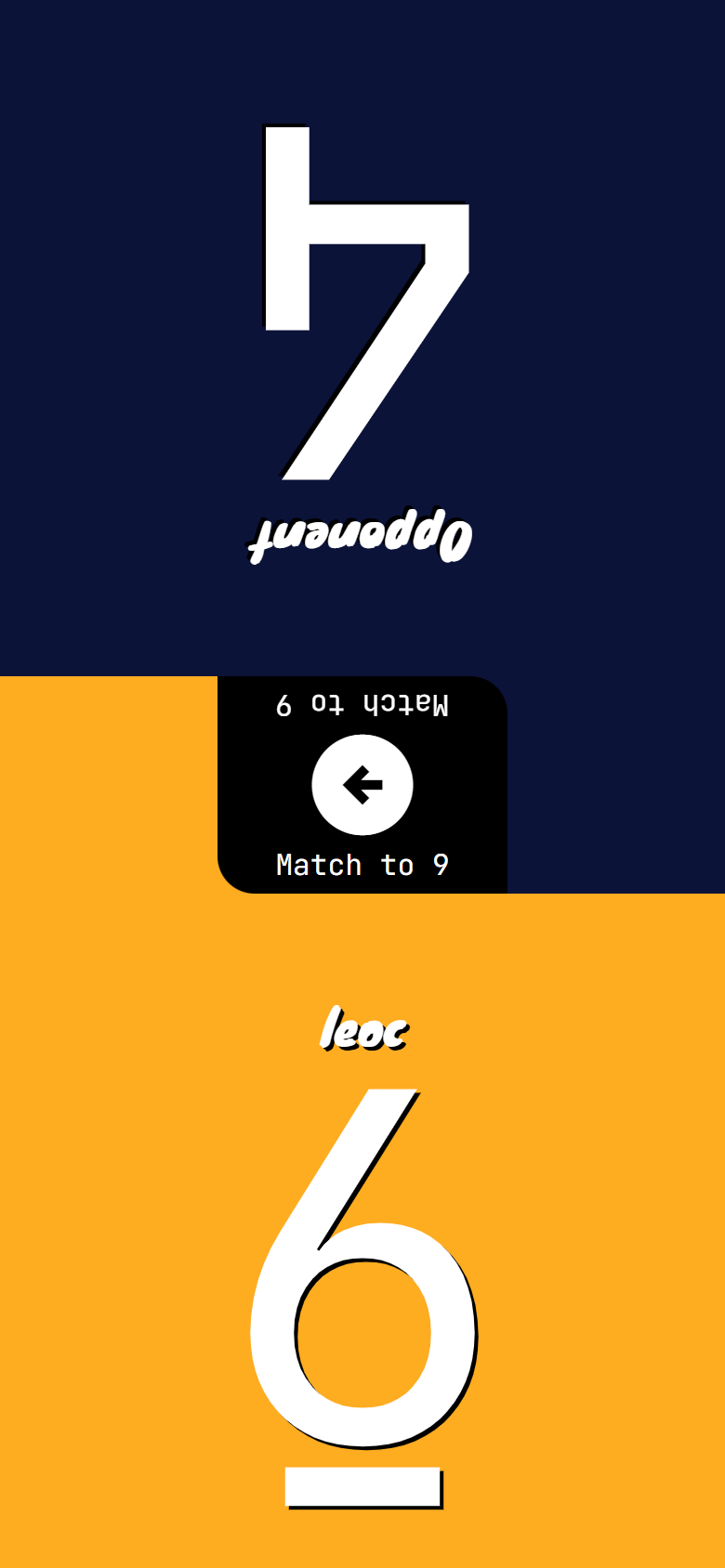
Choose the match length, time per point, and delay, then use it like a regular match clock with the score visible as you play. When the match ends, the result is saved automatically. If a player runs out of time, they lose the match.
The scoreboard
Playing with a separate clock? Use the scoreboard on its own and save the completed result to your history.
Add result
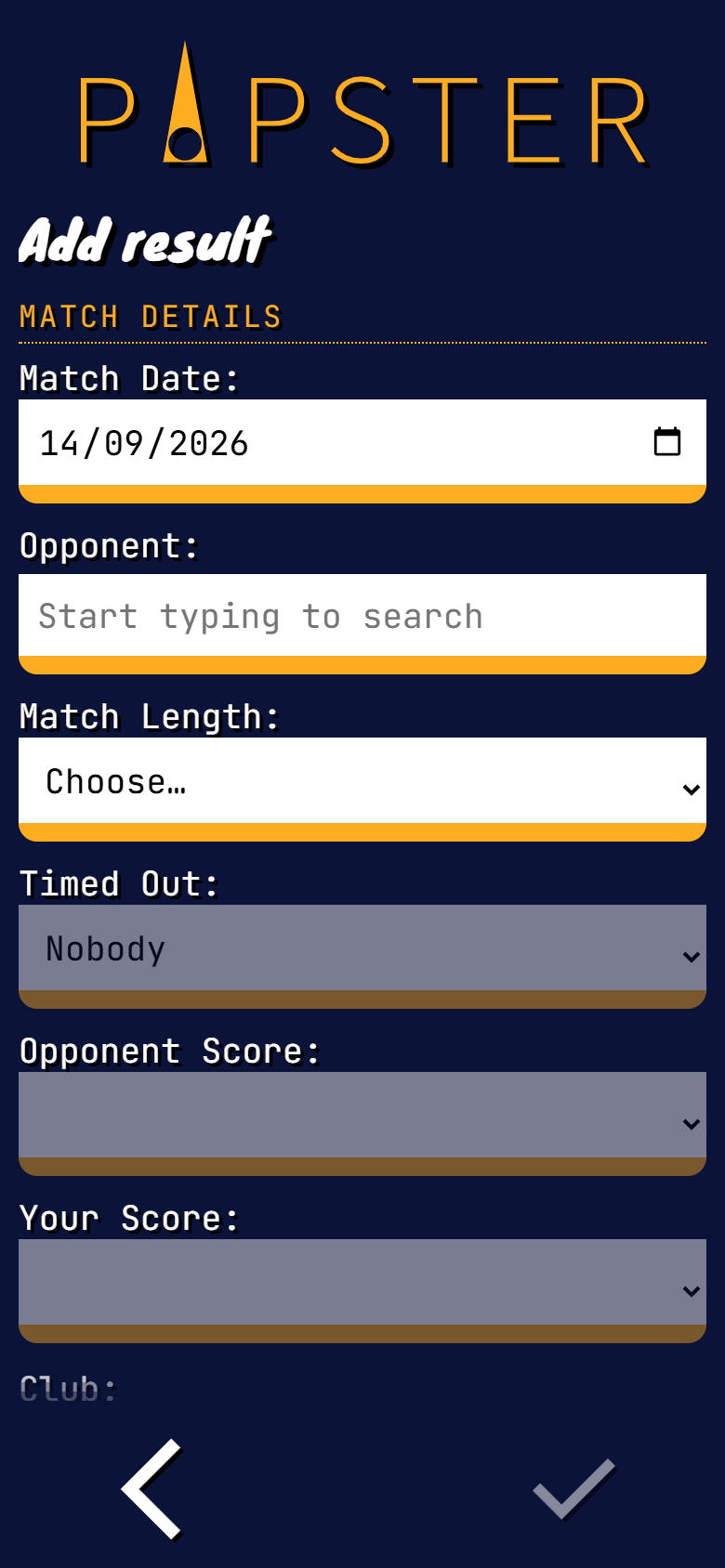
Already played the match? Enter the result afterwards and your history and stats are updated in the same way.
See Pipster in action
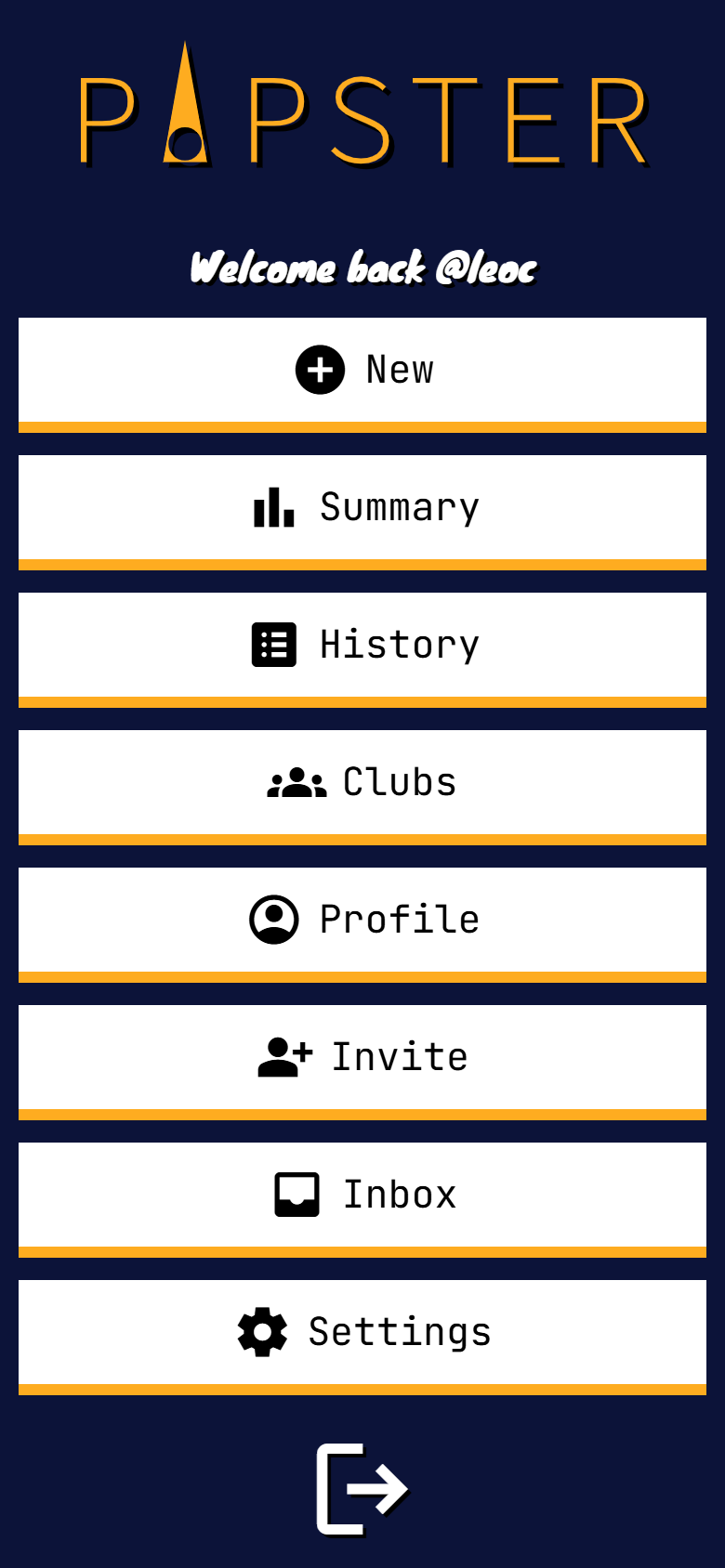
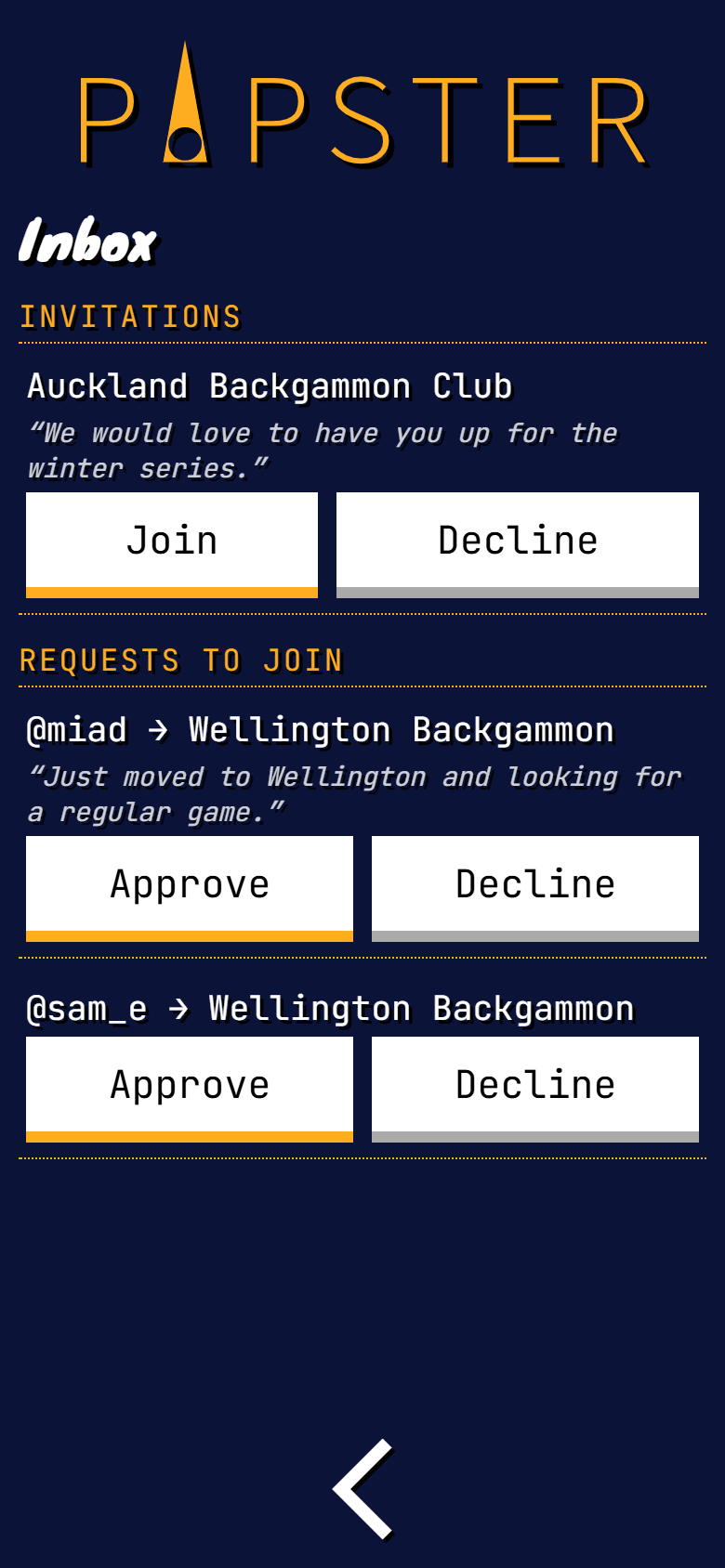
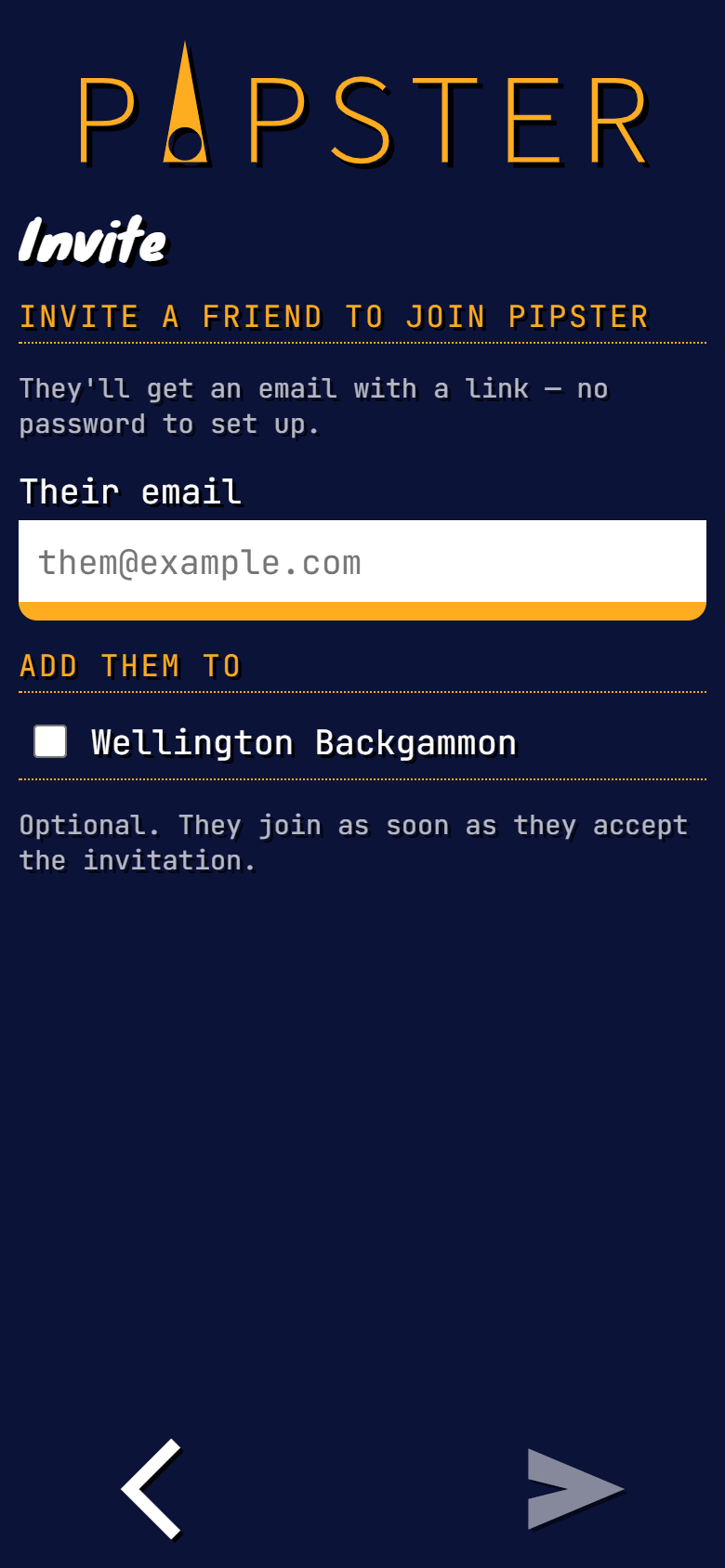
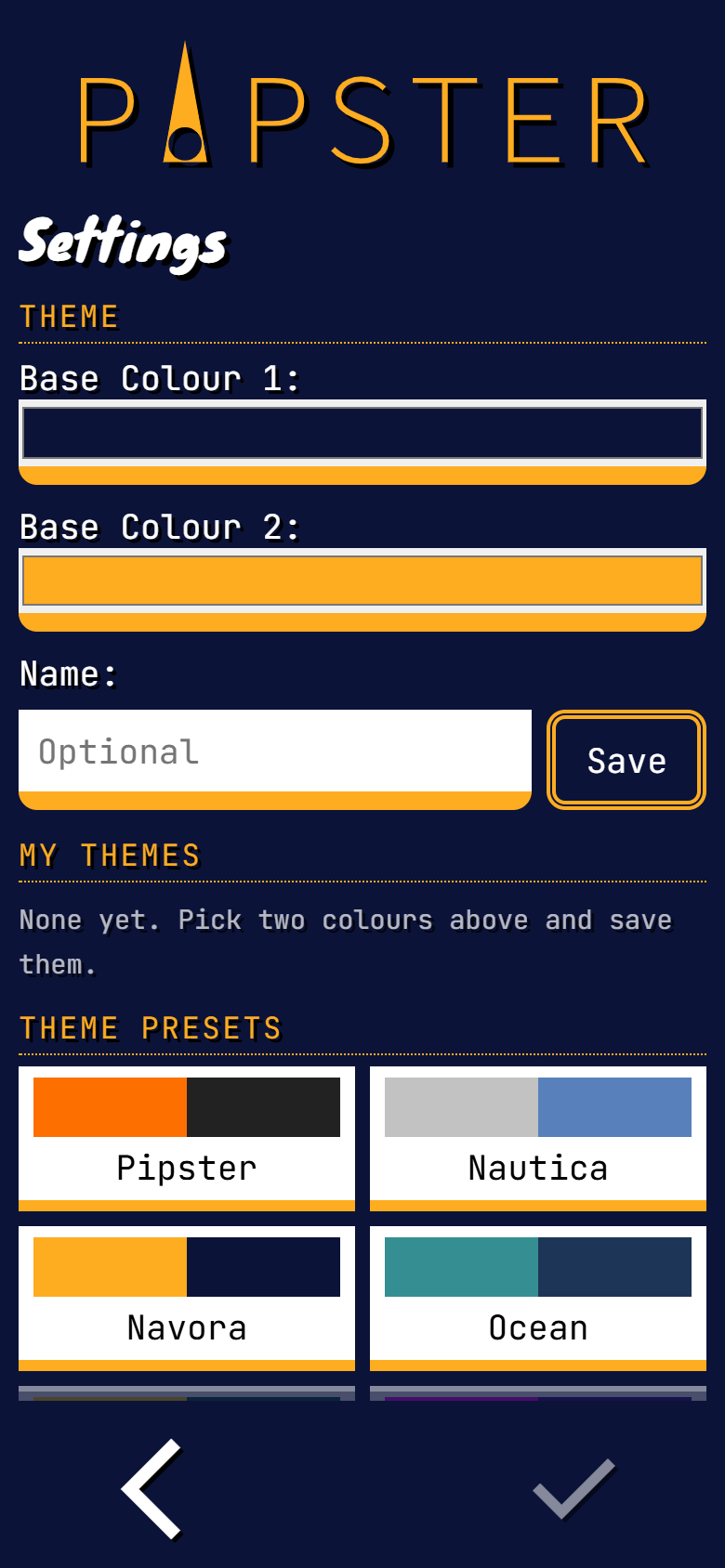
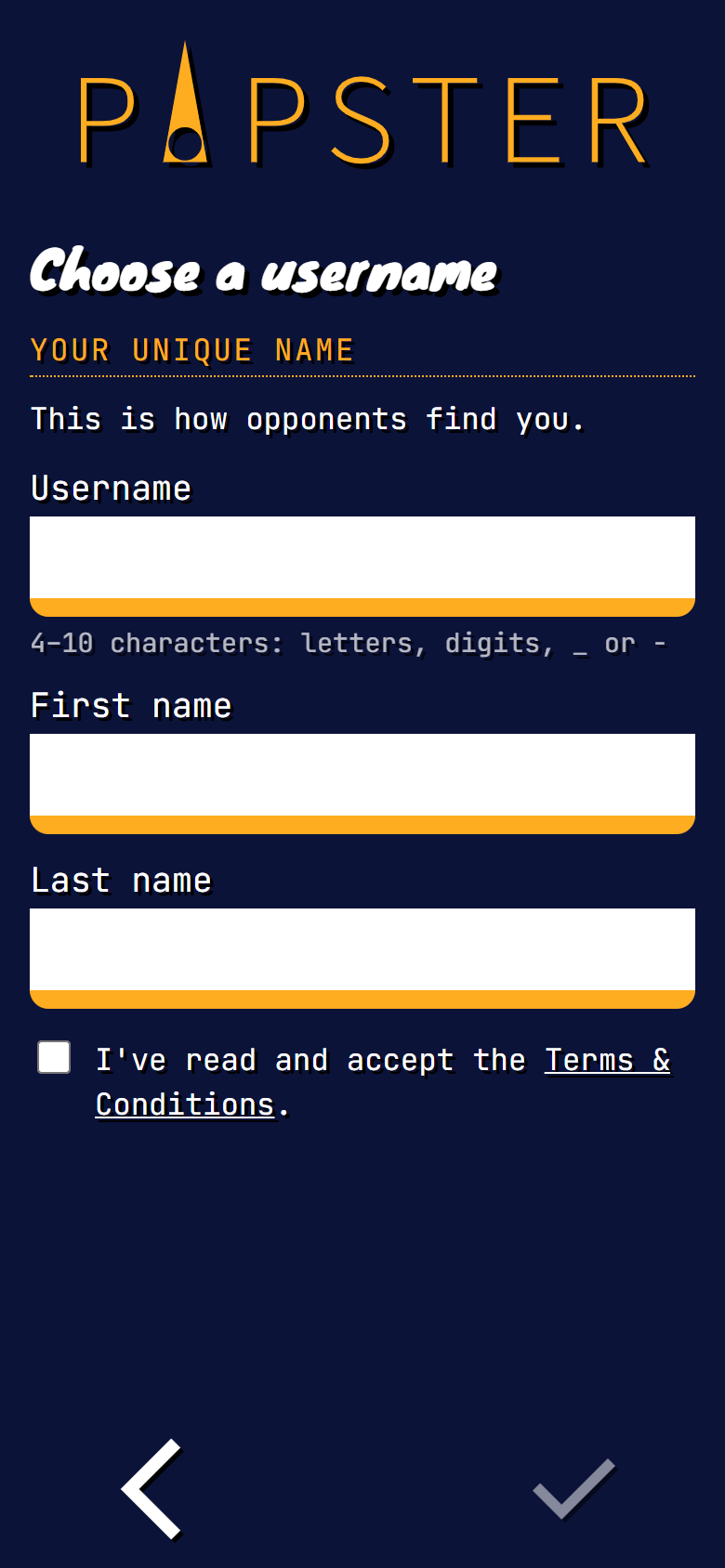
A quick look at the screens you use to start, play, record, and review a match. Swipe across to browse them.



Stats
Every result, whether it came from the clock, the scoreboard, or a manual entry, contributes to your stats.
Summary Screen
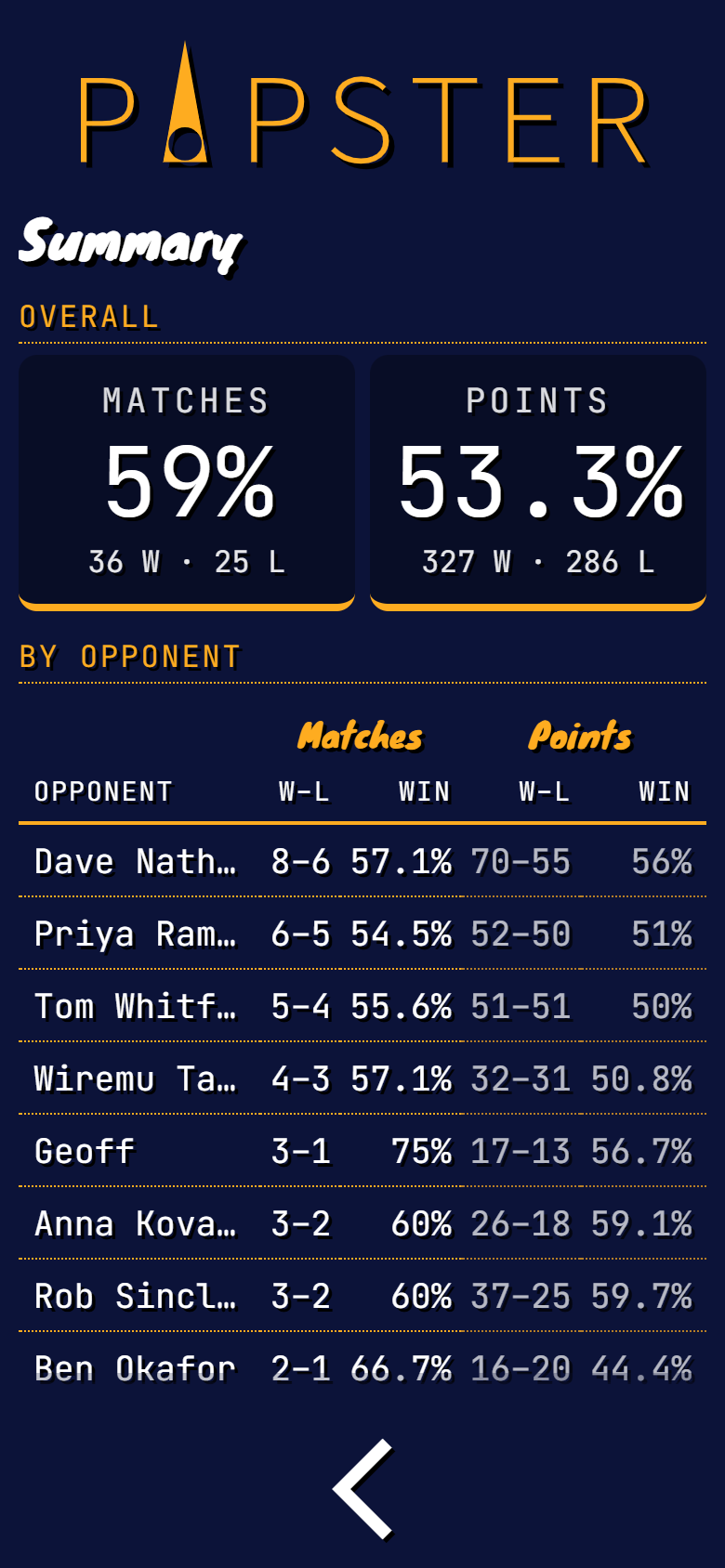
See matches played, wins, losses, and points for and against across all matches you’ve played.
Head to head
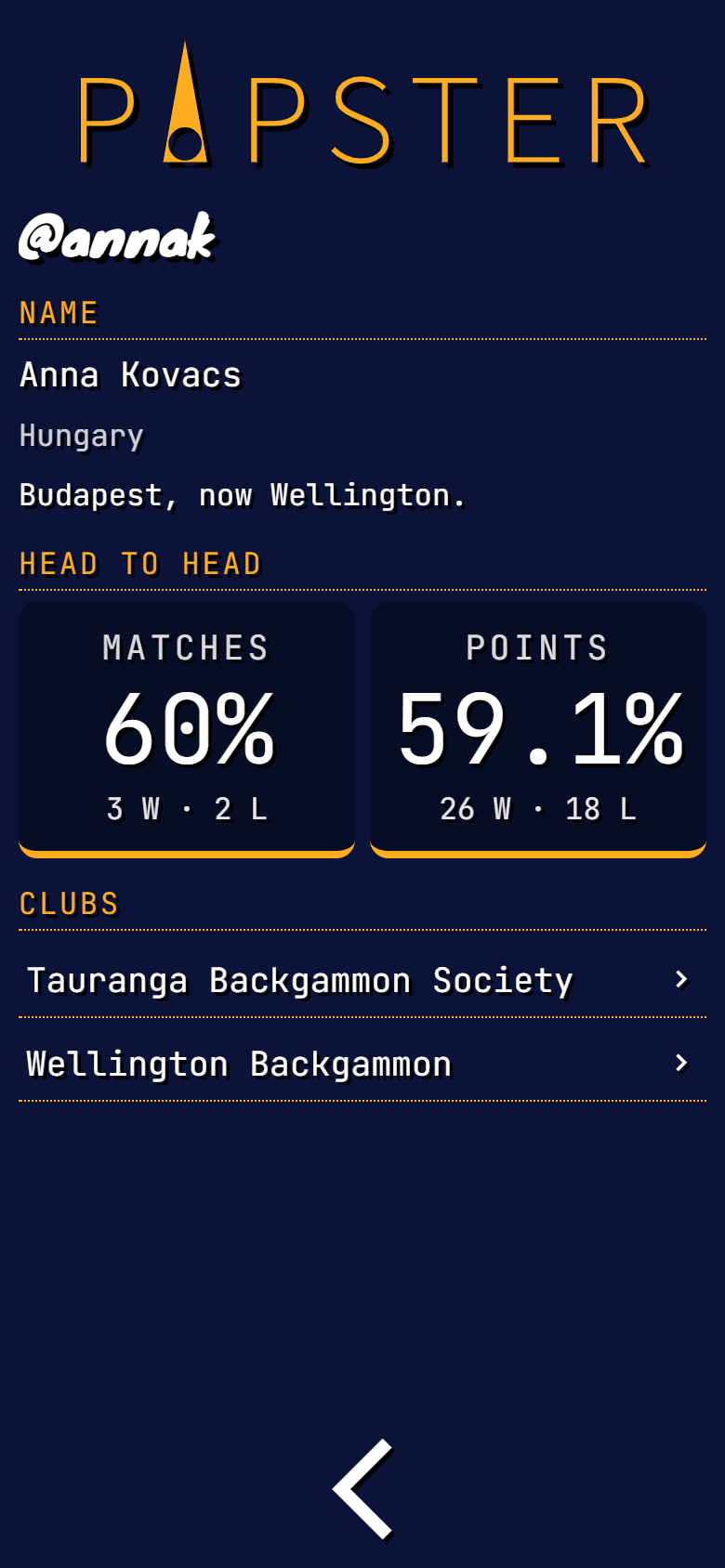
Check your record against a particular opponent.
Clubs
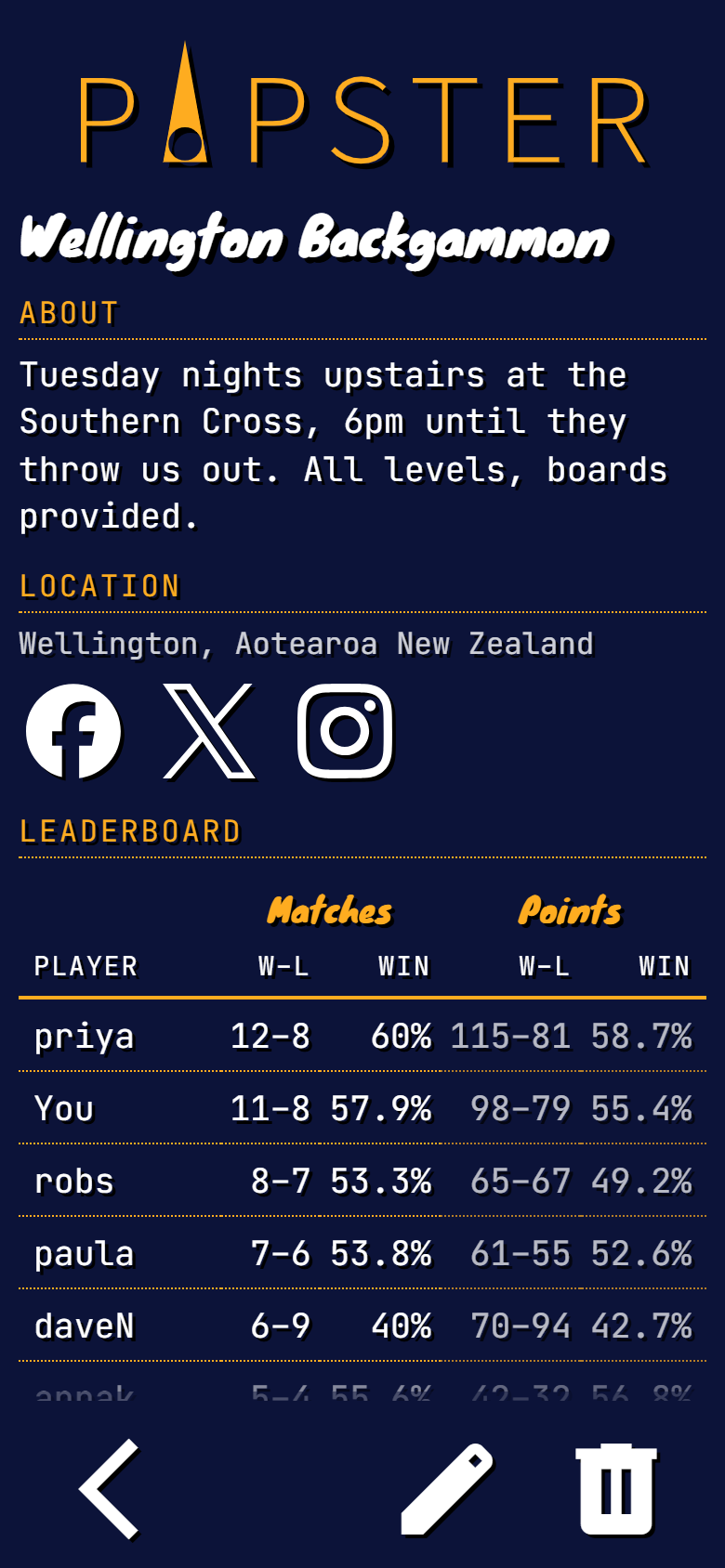
See the leaderboard for each club you belong to.
Match history
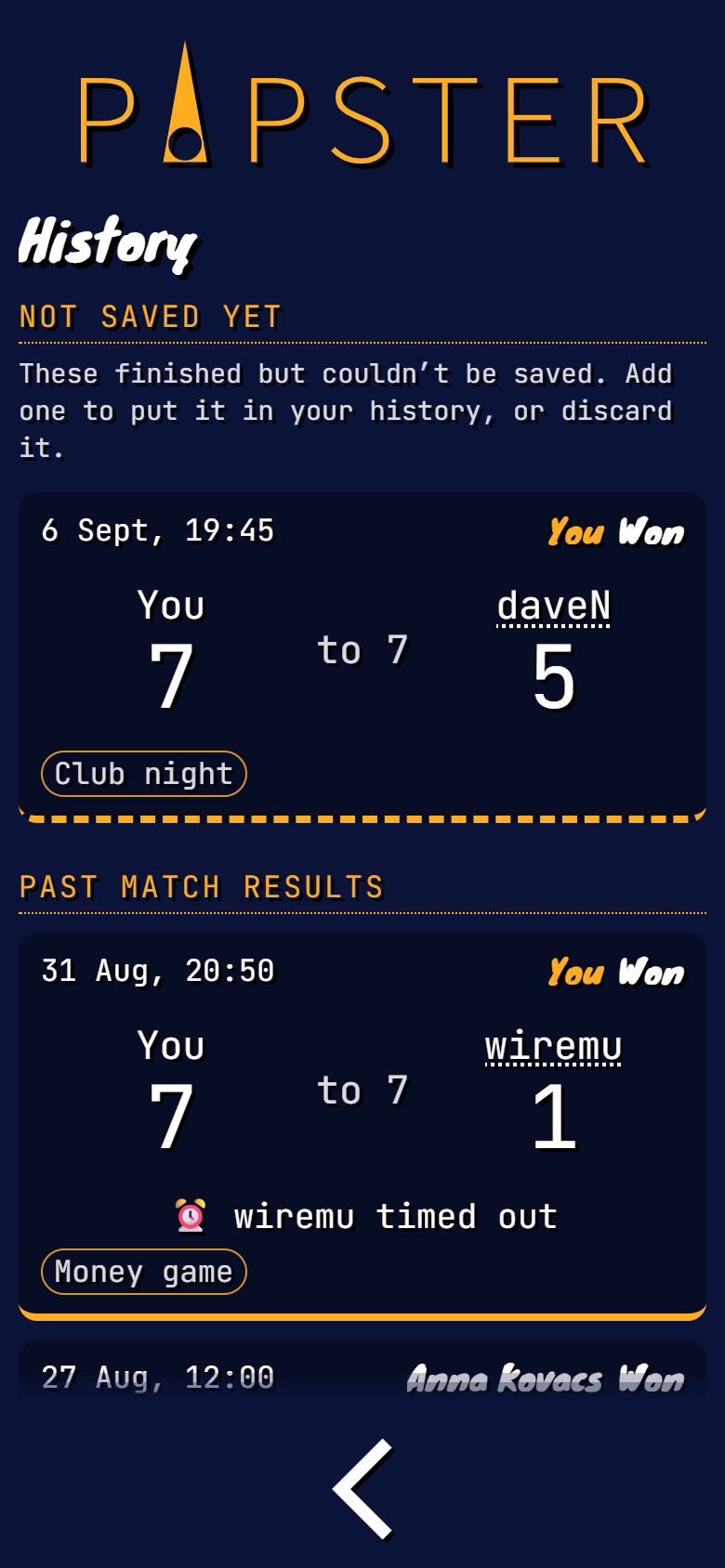
Each match keeps the result, opponent, date, time, and any timeout. If your opponent uses Pipster too, the match can appear in both histories automatically.
Summary
Your overall results, including your record against each opponent you have played.
One match, two histories
Link your opponent when you create or add a match. It then appears in their history from their point of view, with the sides and result reversed. There is only one shared record.
Head to Head
Compare wins, losses, and points against one opponent.
Free text is fine
Not everyone you play has an account. Name them as plain text and the match still counts — your own record stays complete either way.
Tags
Add private labels such as a tournament, venue, or format to a match. You can add up to five tags, and Pipster suggests tags you have used before.
Pipster clubs
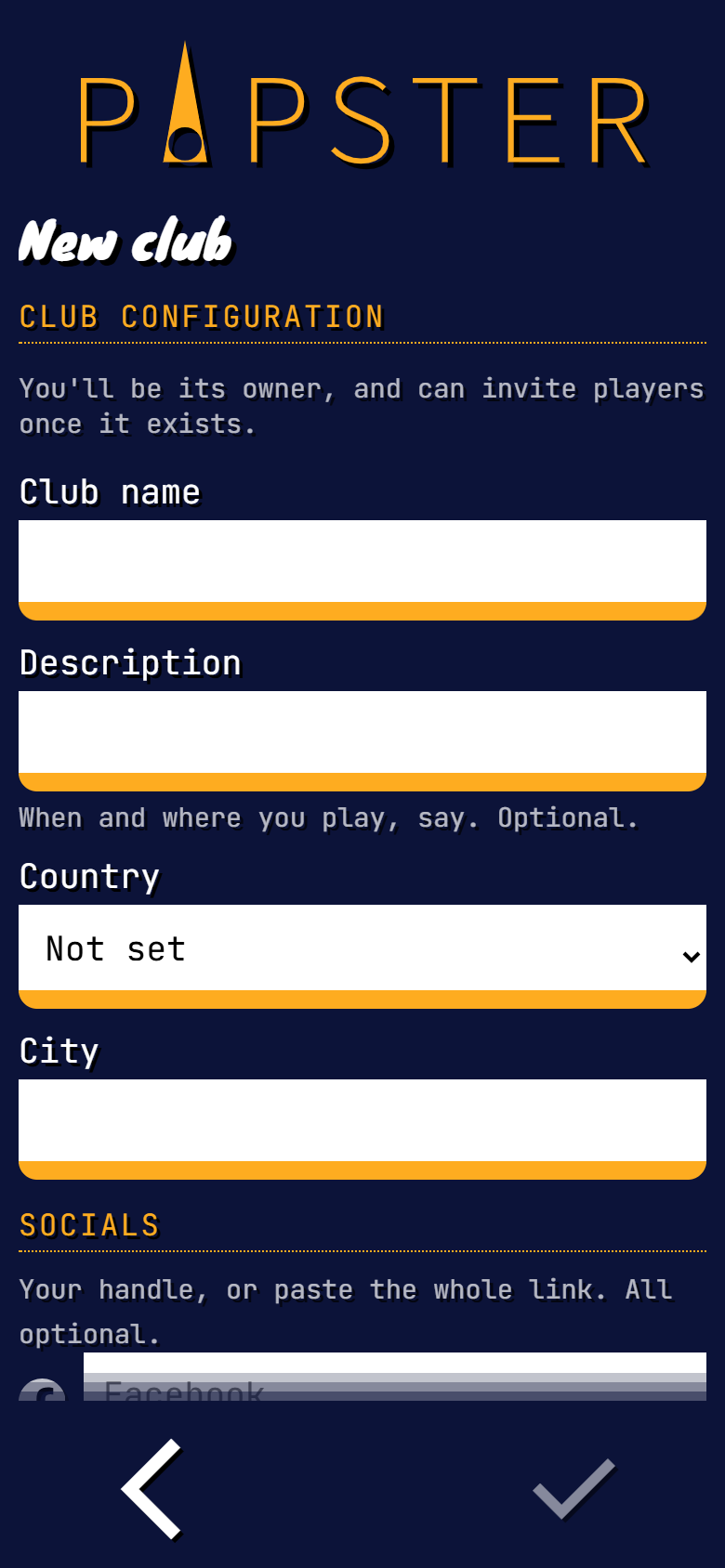
Start a club, add its details, and invite people by username or email. Matches recorded by club members feed the same standings table.
The table is built from saved matches, so nobody has to maintain it by hand. Email invitations create the account and membership in one step, and people can also request to join an existing club. You can also invite someone to Pipster after a match and carry that match into their history.
Add the club's social links so members know where to find it.
The best bits
No ads, no trackers
No advertising, analytics, or third-party tracking. The one cookie is used to keep you signed in.
No passwords
Sign in with a six-digit code sent to your email. There is no password to create or remember.
No cost
Pipster is free to use.
FAQ
Here are the questions that come up most often. If yours is missing, send us a message .
Do I need an account?
Not to play. The clock and the scoreboard work the moment you open Pipster. A guest's finished match is not saved until they create an account, but the result can be kept on the device in the meantime. There is no password to choose: sign in with a six-digit code by email.
Is Pipster free?
Yes. Everything that exists today is free to use, with no advertising and no analytics or third-party trackers of any kind. If that ever changes we’ll say so here first.
How does the clock work?
Choose the match length, time per point, and delay before you start. Then tap to pass the turn. The clock keeps the score and records the result; a player who runs out of time loses. If your opponent has an account, they can get the match in their history too.
Can I install it on my phone?
Yes. On an iPhone or iPad, open Pipster in Safari, tap Share, then choose Add to Home Screen . It will open like an app, without the browser address bar. On Android or a desktop browser such as Chrome or Edge, use the browser's Install option when it appears. You can find these instructions again in Settings under Install .
What happens when I play someone else who uses Pipster?
Link them as you save the match and it appears in their history too, from their side, with the sides swapped and the result inverted. If they are not on Pipster yet, invite them by email and carry the match into their history when they join.
Who can see my details?
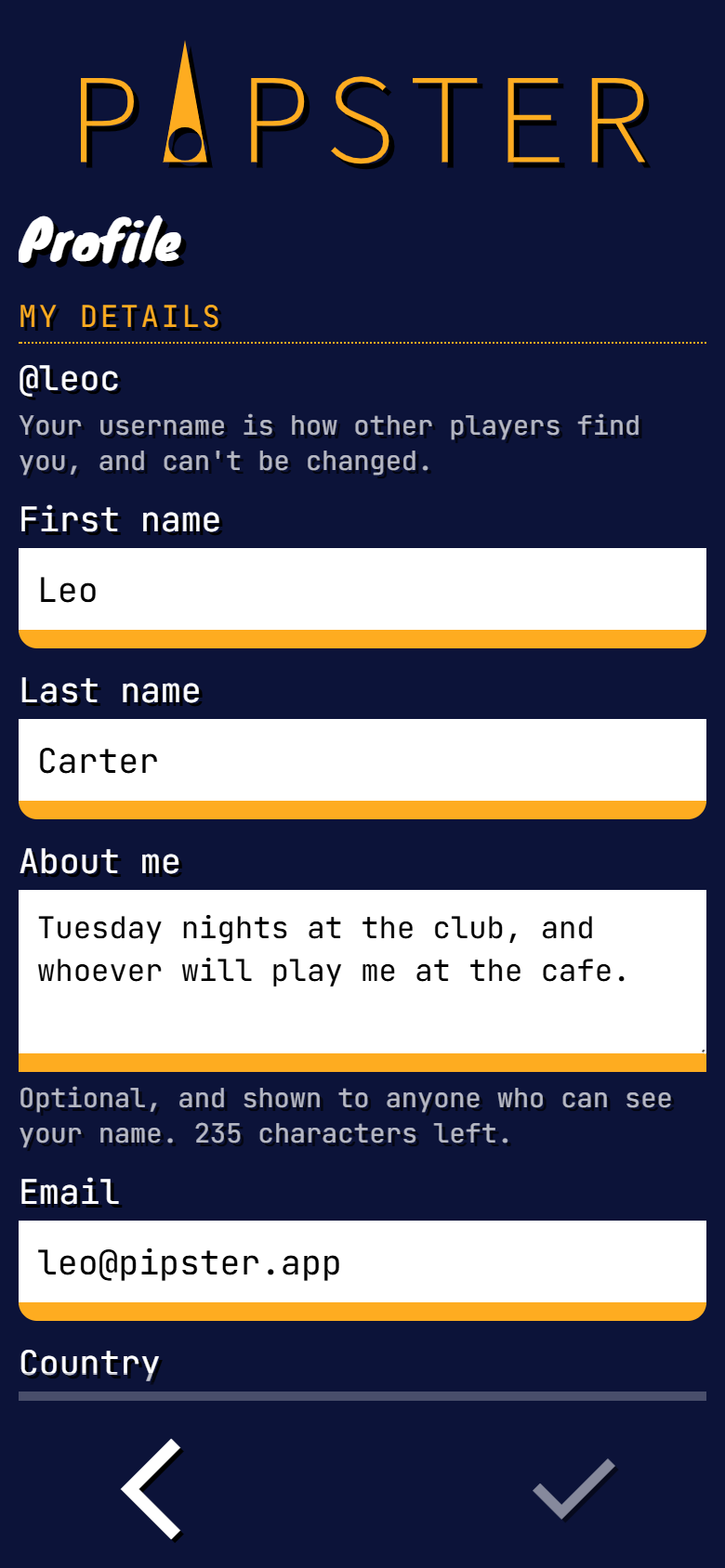
Your username is visible to any signed-in player and your email address is never shown to anyone. Your real name, country and about-me follow a visibility setting you control: everyone, or just the clubs you belong to. The privacy policy goes through it in full.
What if I lose signal during a match?
Your match isn’t lost. The clock and the scoreboard keep going, an unfinished match stays on your device so you can pick it up again, and a finished one is kept there until it can be added to your history.
Get in touch
Have a question, an idea, or a problem? Send a message and we will reply by email.